decoratly logo
Visual AI ToolBy Kamil UhrynUpdated June 20269 min read

Reimagine Home AI - See Your Room Redesigned Before You Commit to Anything

Upload a photo of any room and the AI renders a photorealistic redesign of your actual space - your walls, your windows, your layout - with a new style applied in about 30 seconds.

βœ“ 2 rooms freeβœ“ No credit cardβœ“ Watermark-freeβœ“ Results in ~30s
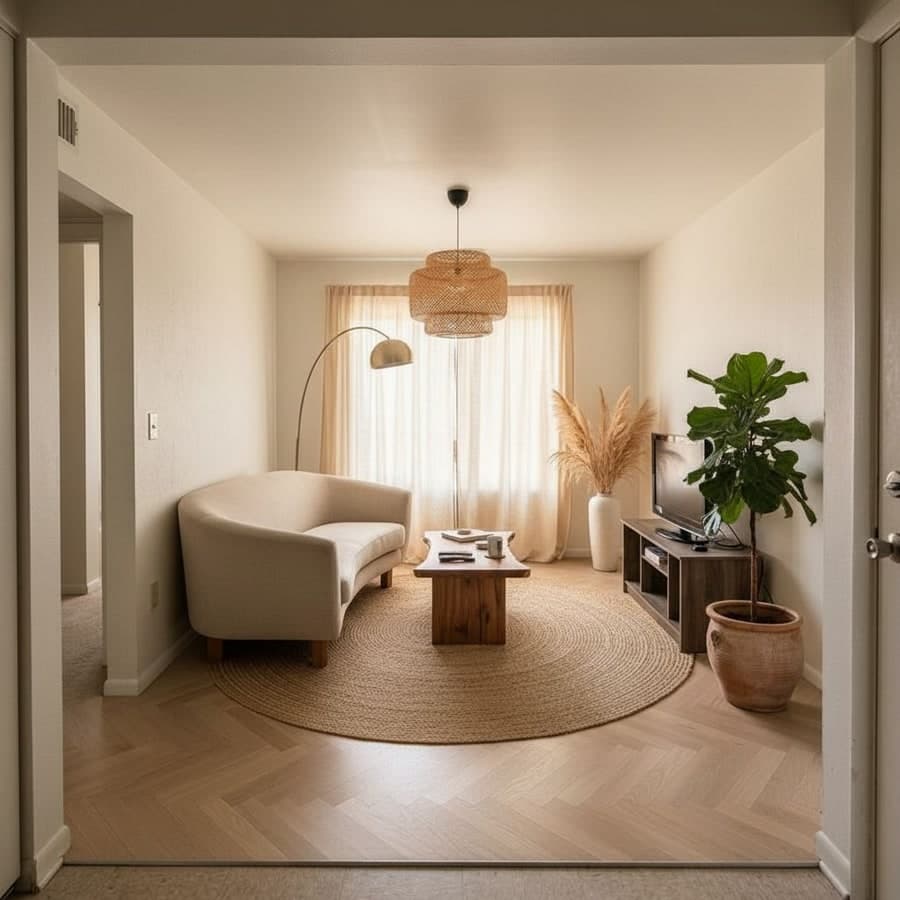
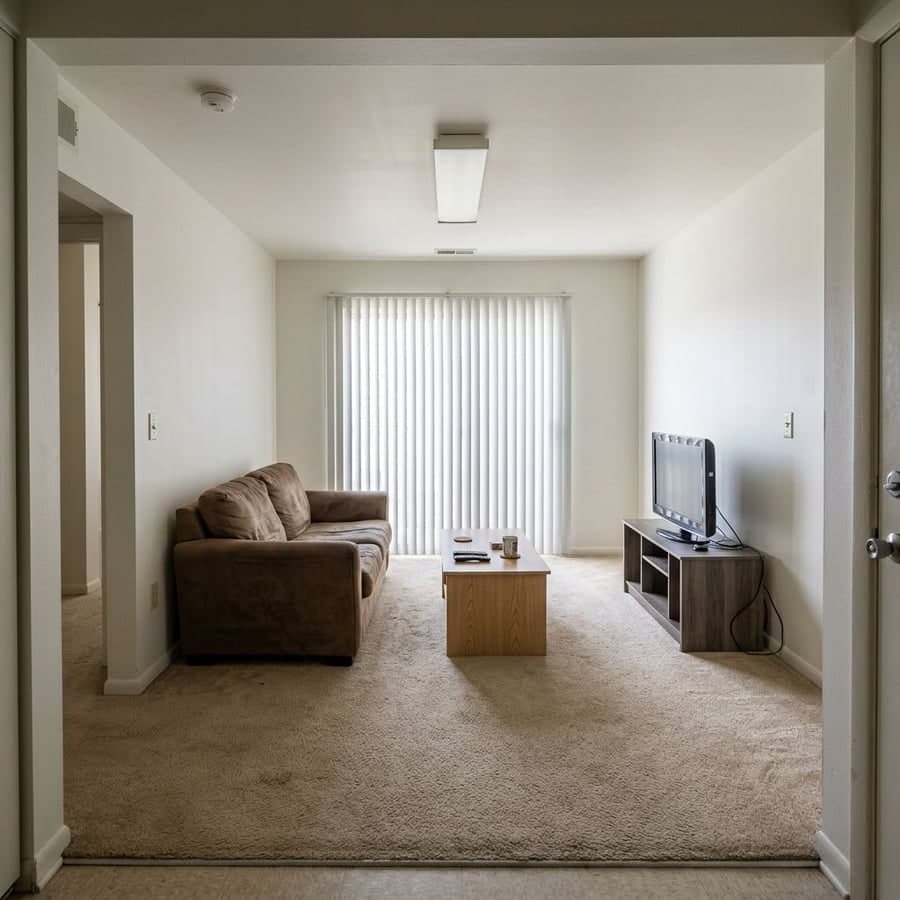
Living room before AI redesign
BEFORE
Living room reimagined in Warm Japandi style with AI
AFTER
Warm Japandi
AI
Rendered in ~30 seconds
537K+ rooms
🎨
30+ styles
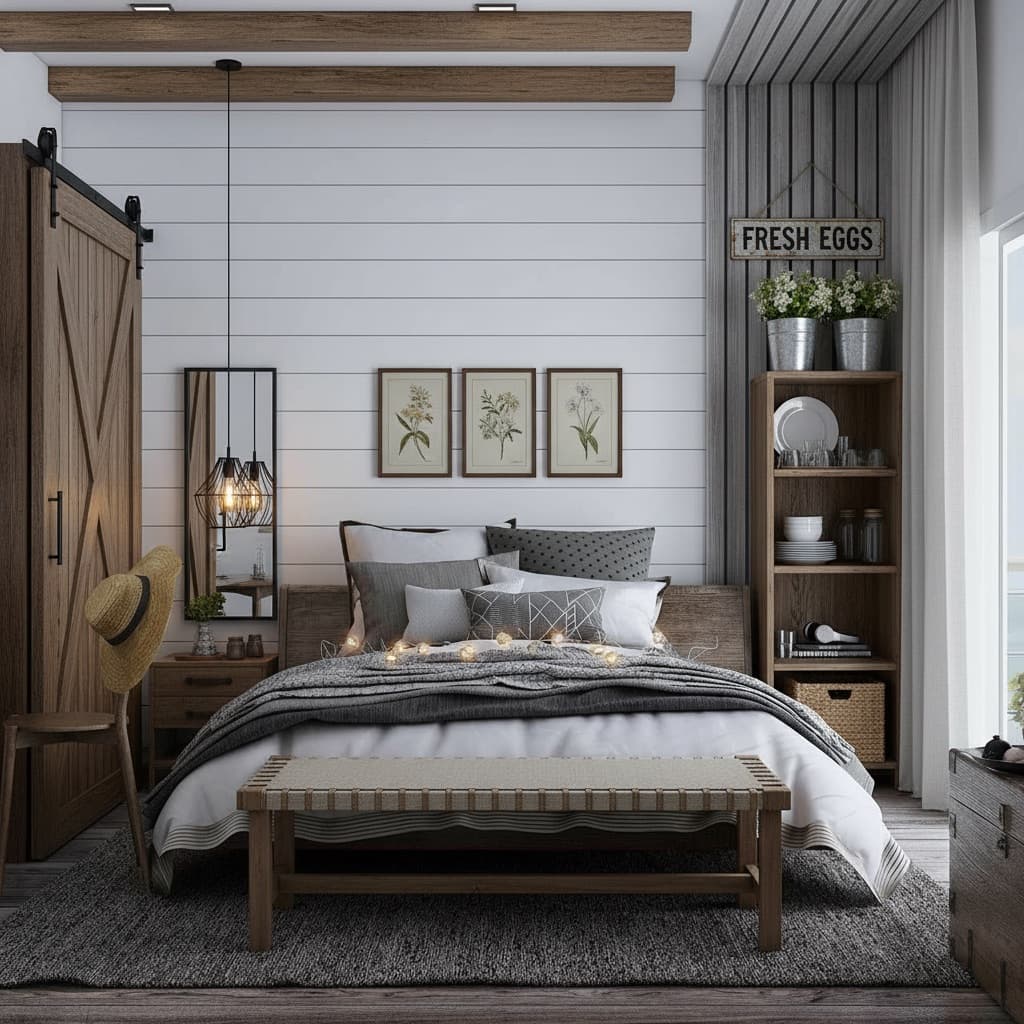
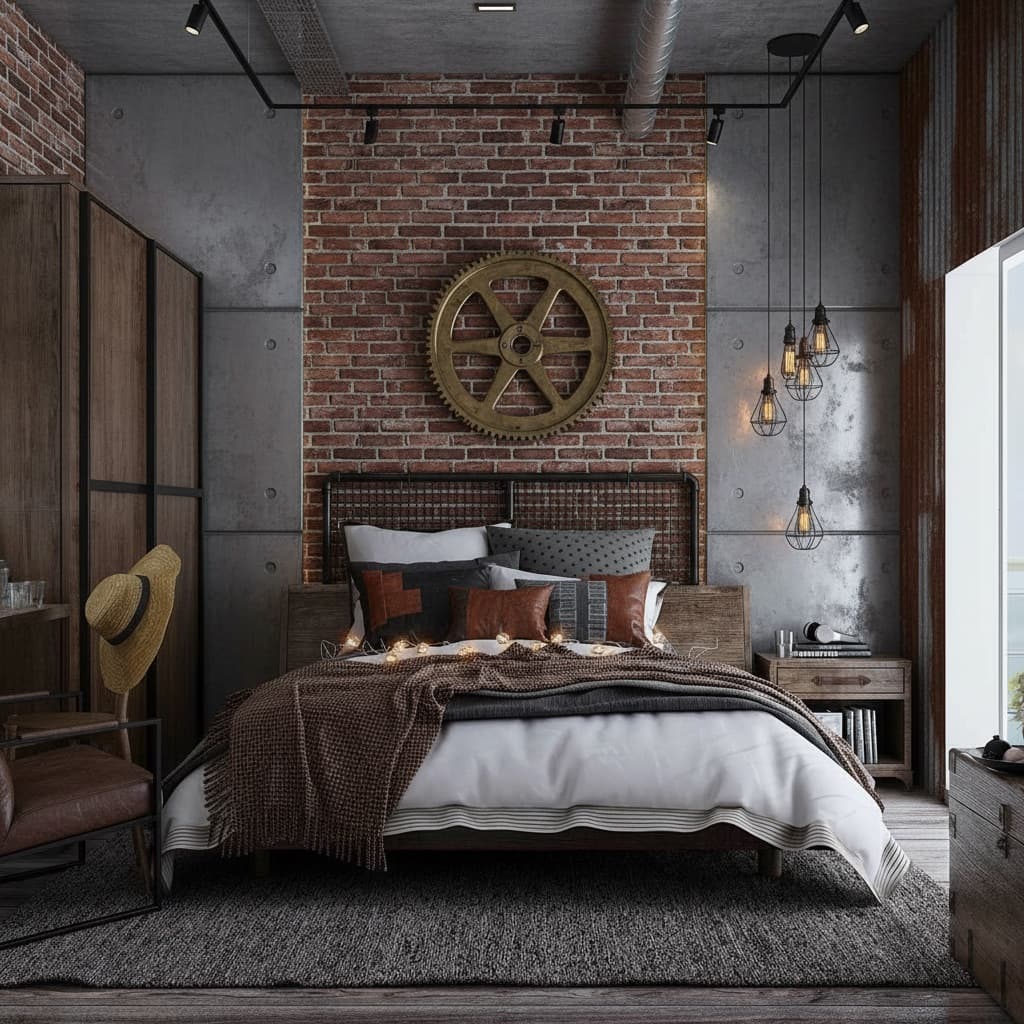
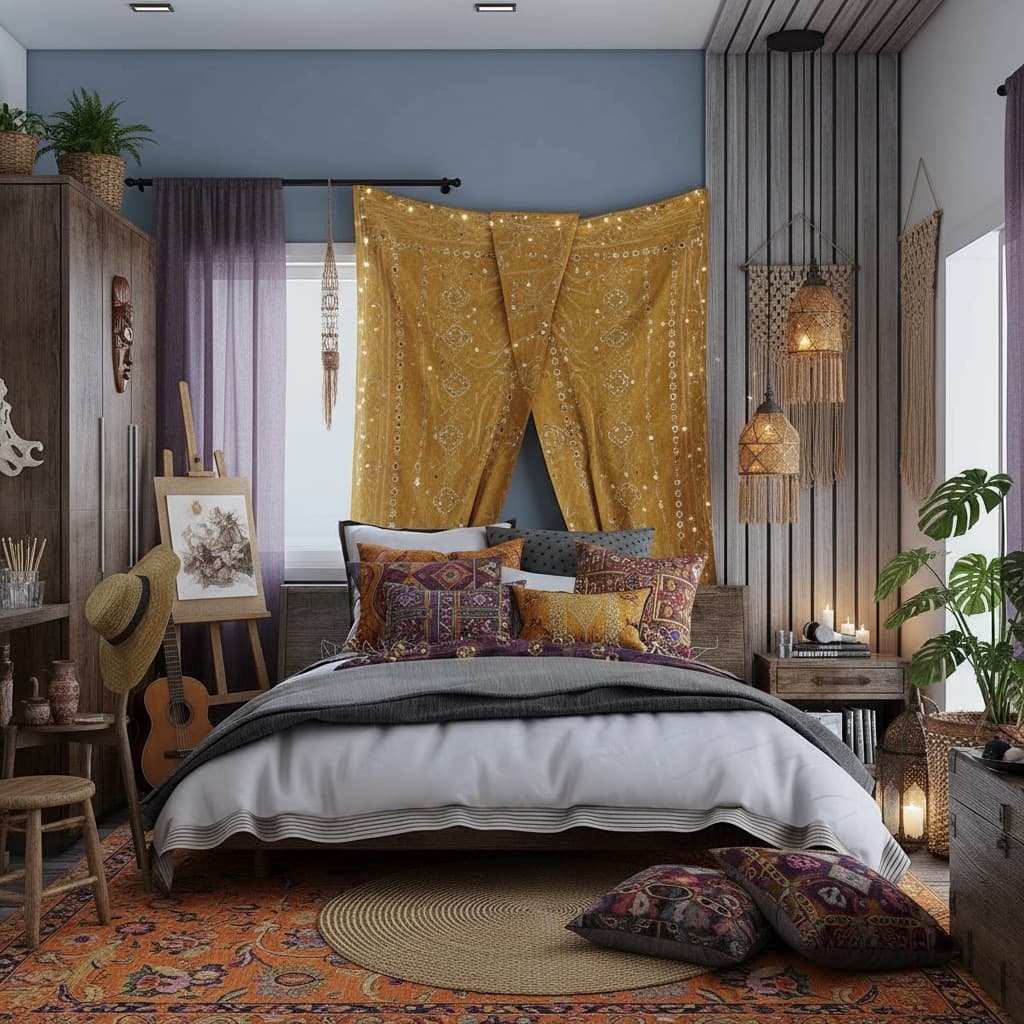
Japandi Β· Coastal Β· Luxury Β· Farmhouse
🏠
Every room type
Living Β· Bedroom Β· Kitchen Β· Bath

Quick Answer

What does reimagine home AI mean?

Reimagine home AI is software that shows you what your actual room would look like with a different design applied. Not a generic moodboard - your specific walls, windows, and layout, with a new style rendered on top of them. Upload a photo, pick a style (or describe one in plain English), and the AI returns a photorealistic redesign in about 30 seconds.

The key difference from other design tools: the AI works from your photo. It reads the room's geometry, proportions, and lighting - then applies the redesign to your real space. The result looks like a photo of your room after renovation, not AI-generated concept art.

This matters because most design decisions get made visually. You can read "sage green walls with warm walnut accents" and still not be sure. Seeing it rendered on your actual room removes the guesswork before you spend anything.

πŸ’‘ Note on search results: If you searched for "Reimaginehome.ai" and landed here, that's a different product. This is Decoratly - a separate AI interior design tool. You can try 2 rooms free with no credit card.

Step-by-Step

How to reimagine your home with AI - 3 steps

The whole process takes under a minute. No account required to start.

  1. 1.Upload a photo of any room - phone camera is fine
  2. 2.Pick a style from 30+ presets, or describe what you want in plain English
  3. 3.Download your photorealistic redesign in about 30 seconds
πŸ“·
01

Upload a photo of any room

10 seconds

Take a photo with your phone or use an existing image. The AI reads the room's geometry, dimensions, and lighting from the photo automatically - you don't need to describe anything about the space. Any room type works. Messy rooms are fine.

🎨
02

Pick a style or describe what you want

5 seconds

Choose from 30+ preset styles like Japandi, Coastal, or Quiet Luxury. Or type a description in plain English - 'warm and cozy with dark wood accents', 'bright Scandinavian', 'moody industrial'. Both work equally well.

⬇️
03

Download your redesigned room

~30 seconds

The AI renders a photorealistic redesign of your actual room in about 30 seconds. Download the full-resolution, watermark-free image immediately. Share it with a partner, hand it to a contractor, or use it as a visual reference before buying anything.

Get Better Results

How to take a room photo that gets the best AI results

The AI works entirely from your photo. A better photo means a more accurate render - these six things make the biggest difference.

01

Shoot from the doorway or a corner

You want to capture as much of the room as possible in one frame. Standing in the doorway or backing into a corner gives the AI the most geometry to work with. The more walls, floor, and ceiling it can see, the more accurate the redesign.

02

Use natural light over overhead lights

If you have good window light, turn off the overhead ceiling lights before you shoot. Natural light gives the AI cleaner surface information. Harsh overhead lighting creates shadows that can confuse the geometry read.

03

Shoot at chest or waist height

Too high and the floor dominates the frame. Too low and the ceiling disappears. Chest height - roughly 1.2-1.4 metres off the ground - gives the most balanced view of walls, furniture, and floor. Avoid holding the phone above your head.

04

Include at least two walls

The AI needs to understand where the room's corners are to map geometry correctly. If you can see where two walls meet, the render will be more spatially accurate - especially for flooring transitions and wall colour across corners.

05

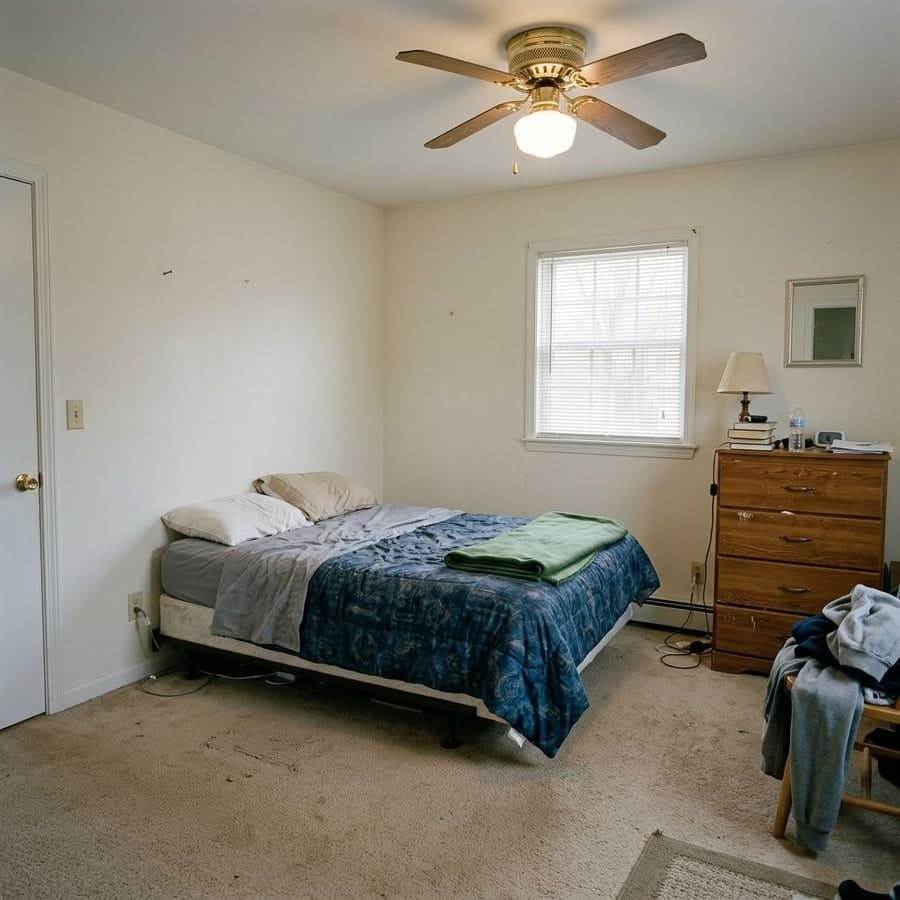
Messy rooms are completely fine

The AI focuses on surfaces: walls, floors, ceilings, and large furniture silhouettes. Clutter on a coffee table or clothes draped on a chair don't affect the render quality. You don't need to tidy up first.

06

Avoid extreme fisheye lenses

A slight wide angle is fine - actually helpful. But heavily distorted fisheye lenses warp the room's proportions in ways the AI can't fully compensate for. Your phone's standard camera app is ideal. No lens add-ons needed.

Quick check: If you can see the room's main focal point, at least two walls meeting in a corner, and some of the floor - it's a good photo. Upload it and see what the AI does.

Upload My Photo β†’

Who Uses It

Six situations where reimagine home AI actually changes the decision

The tool is useful whenever a visual reference would change what you do. Here's where it tends to matter most.

🏠

Renters who can't renovate

You can't paint the walls or swap the flooring, but you can figure out what furniture, textiles, and accent pieces actually work in the space before spending. The AI shows you what a new sofa or rug looks like in your specific room - not in a showroom.

πŸ”¨

Homeowners before a renovation

Show your contractor a render of your actual room with the changes applied - not a Pinterest board of someone else's kitchen. The gap between what you imagine and what gets built shrinks significantly when both parties are looking at the same visual reference.

πŸ’‘

Couples who can't agree

Run the same room through three different styles. Eliminate the one you both like least first. The visual reference cuts conversations that could go in circles for weeks - it's easier to say 'not that one' than to describe what you want in words.

🏑

Sellers and real estate staging

See what a listing looks like with different staging before committing to physical furniture rental. Useful for sellers testing staging directions, or agents presenting two or three concepts to clients before a shoot.

✏️

Designers presenting early concepts

Present three style directions on the client's actual room photo before drawing up detailed plans. Rendering on their real space - not a generic showroom - gets faster feedback. Clients can visualize it immediately and respond to something concrete.

πŸ“¦

Moving into a new space

New apartment or house and you don't want to commit to furniture before knowing what style feels right. Run the empty room through several directions before you start shopping. Know what you want before you're standing in IKEA.

Whichever situation fits - the first two rooms are free. No credit card, no timer. See your room redesigned before committing to anything.

Try It Free β†’

Know the Tool

What reimagine home AI does - and where it stops

Honest breakdown. The AI is very capable within its scope; knowing the limits helps you use it well.

βœ“

What it can do

  • πŸ–ΌοΈRender a photorealistic redesign of your actual room photo
  • 🎨Apply 30+ design styles - or interpret plain-English descriptions
  • πŸ’‘Adjust the lighting and mood of any space
  • πŸͺ‘Add furniture from your own reference images
  • πŸ–ŒοΈPaint walls in 100+ professional colors
  • πŸ—‘οΈRemove unwanted objects from your room photo
!

What it can't do

  • πŸ“Produce a measured floor plan or dimensioned drawing
  • πŸ”—Link to the exact products shown in the render
  • πŸ—οΈAdvise on structural changes or permits
  • πŸ“·Guarantee pixel-perfect recreation of specific furniture pieces
  • 🧱Handle extreme architectural constraints like very low ceilings
  • 🌐Sync with real-time product availability or pricing

The render gives you a clear visual reference before you spend anything - on paint, furniture, or contractors. That's its job, and it does it well.

Try It Free β†’

Room by Room

What to expect from each room type

The AI works well across all room types, but each has specific strengths. Here's what renders most convincingly - and where to point the camera.

πŸ›‹οΈ

Living Room

Strongest overall

Best for

Sofa walls, flooring, fireplace surrounds, window treatments, TV wall design

Camera tip

Capture the main seating area from across the room. Include the sofa, visible walls behind it, and as much of the floor as possible. The AI handles open-plan geometry very well - more context means a more accurate render.

πŸ›οΈ

Bedroom

Excellent

Best for

Headboard walls, bedding and textiles, lighting fixtures, wall finishes, wardrobes

Camera tip

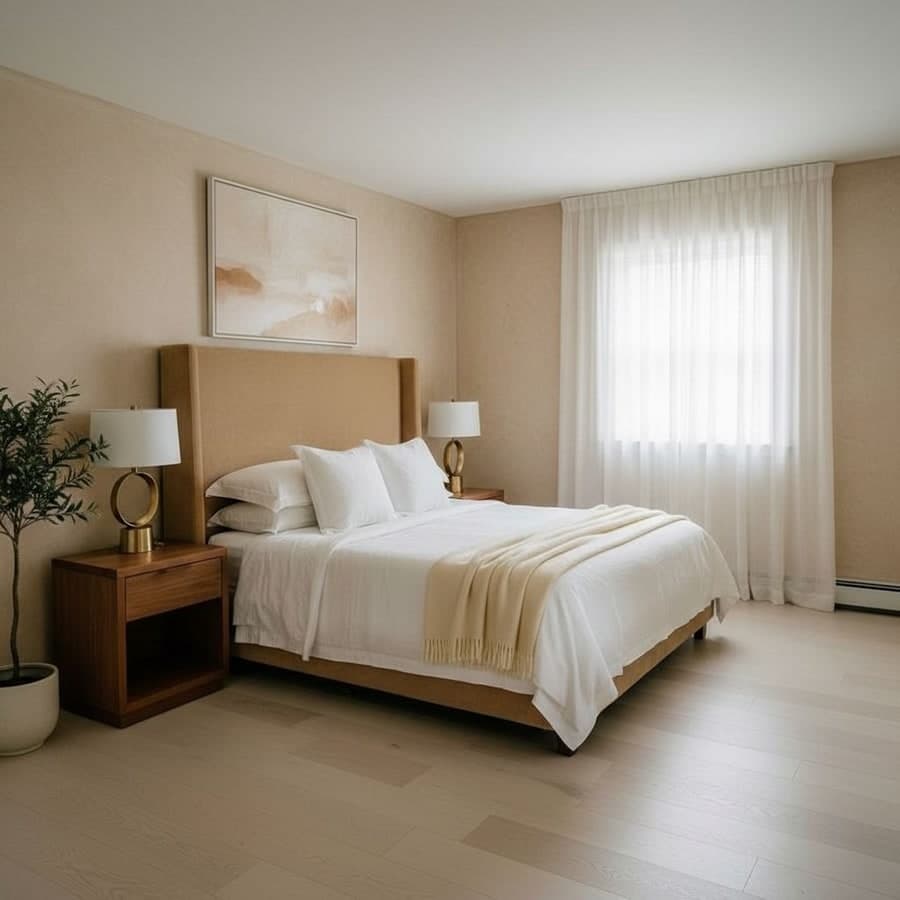
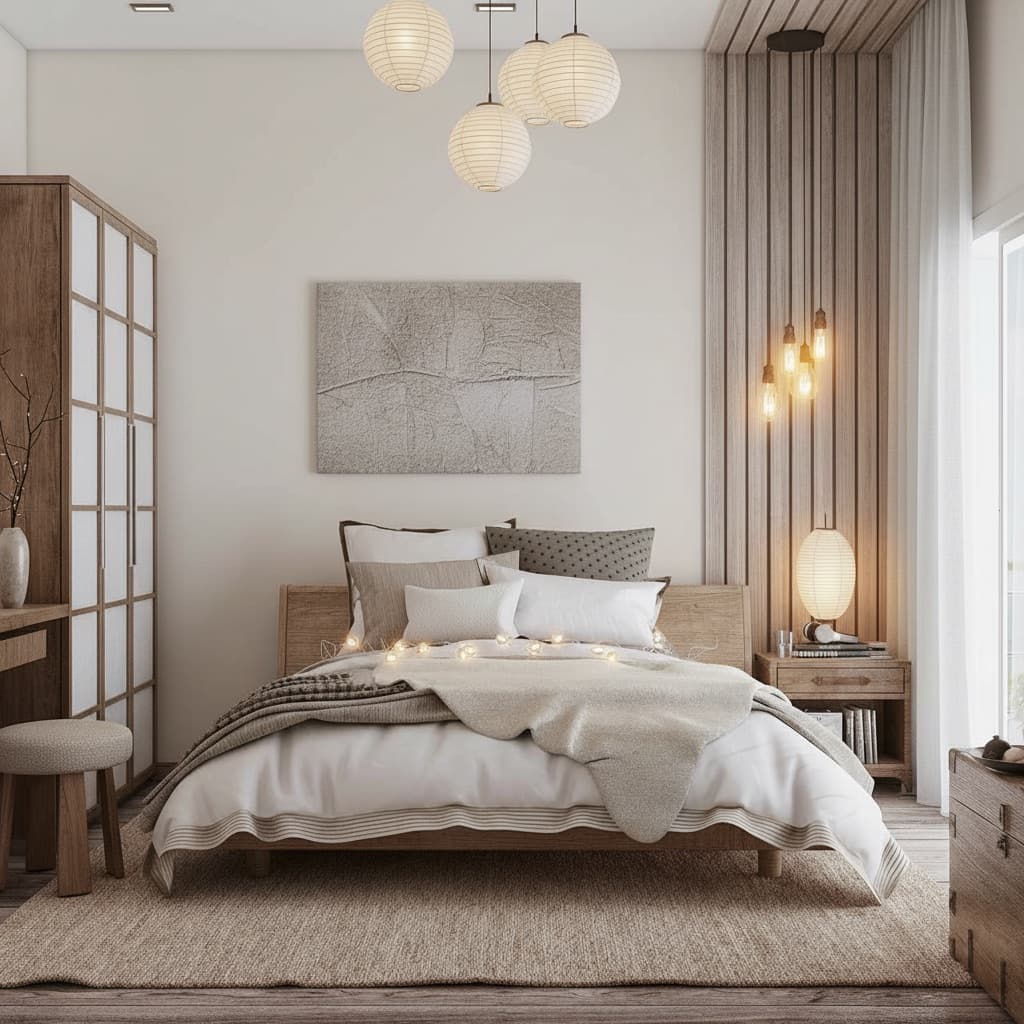
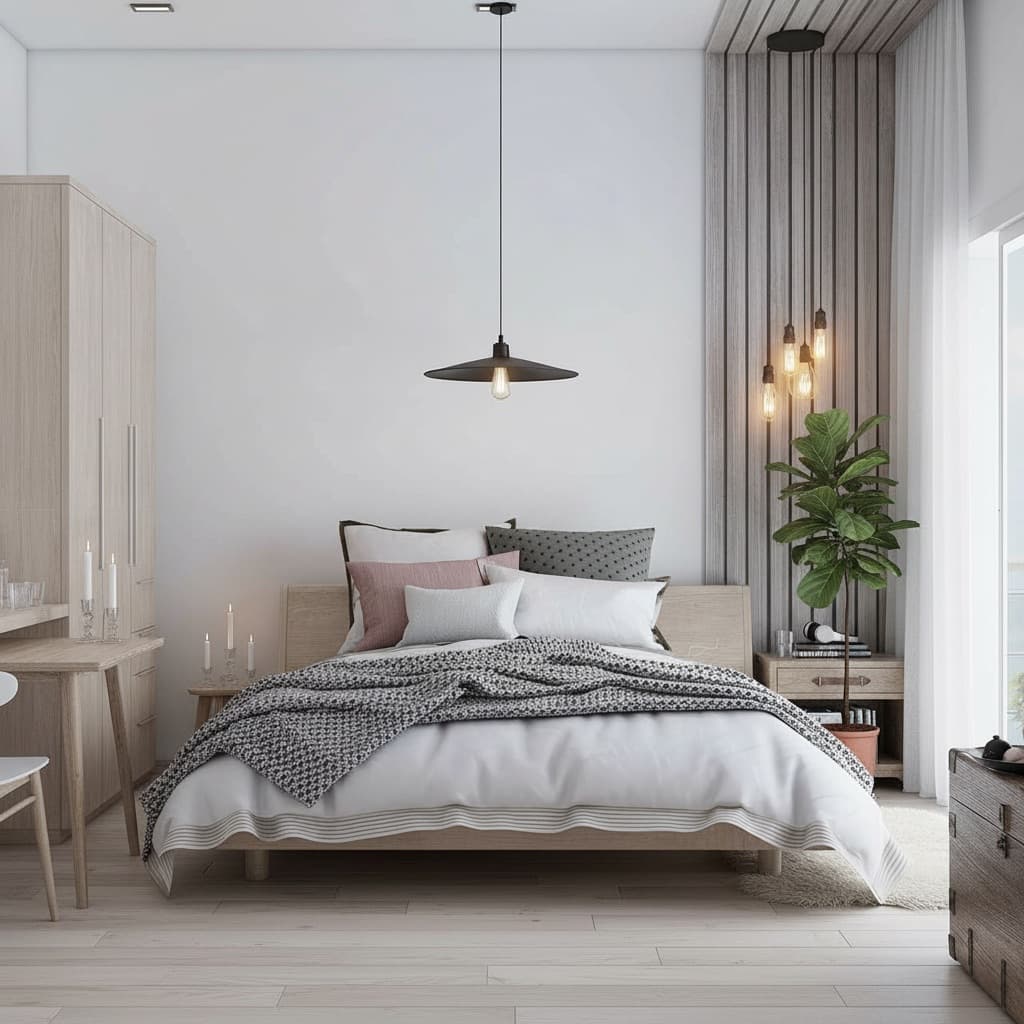
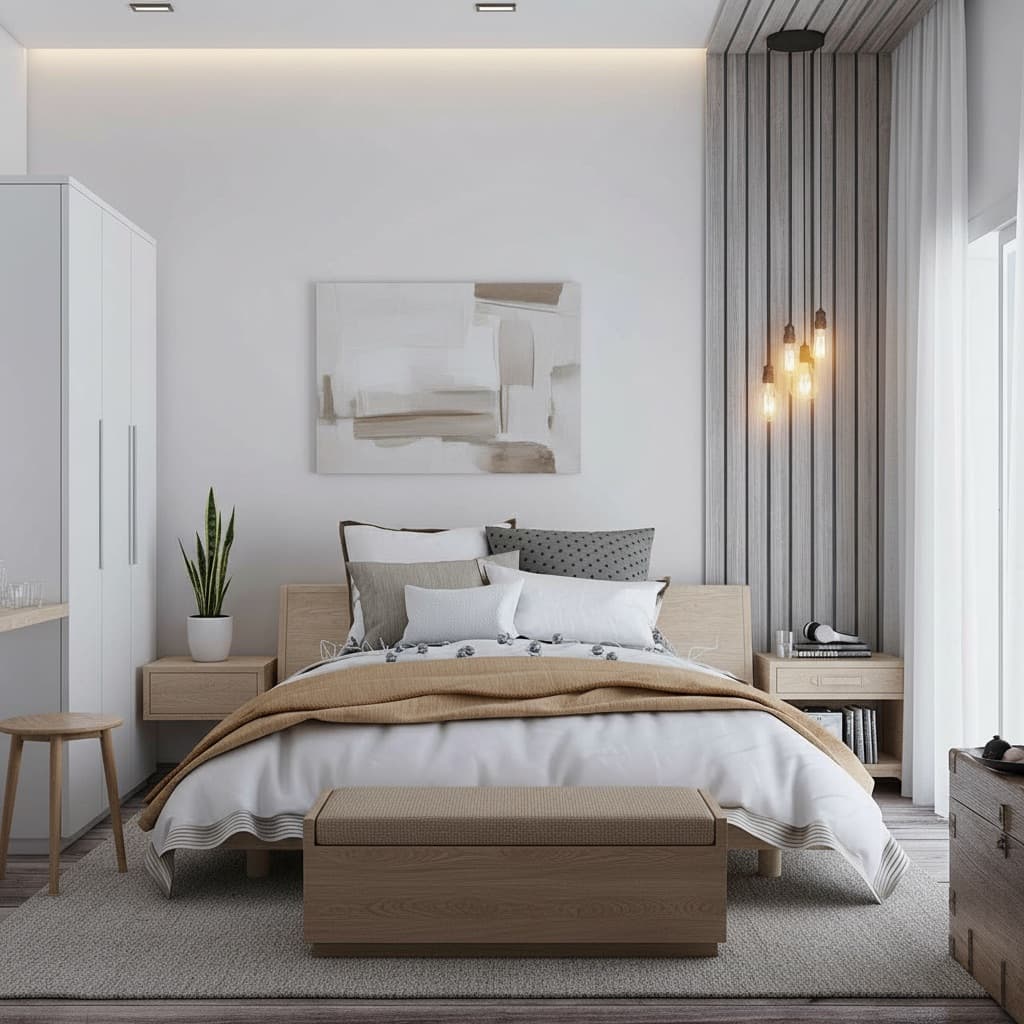
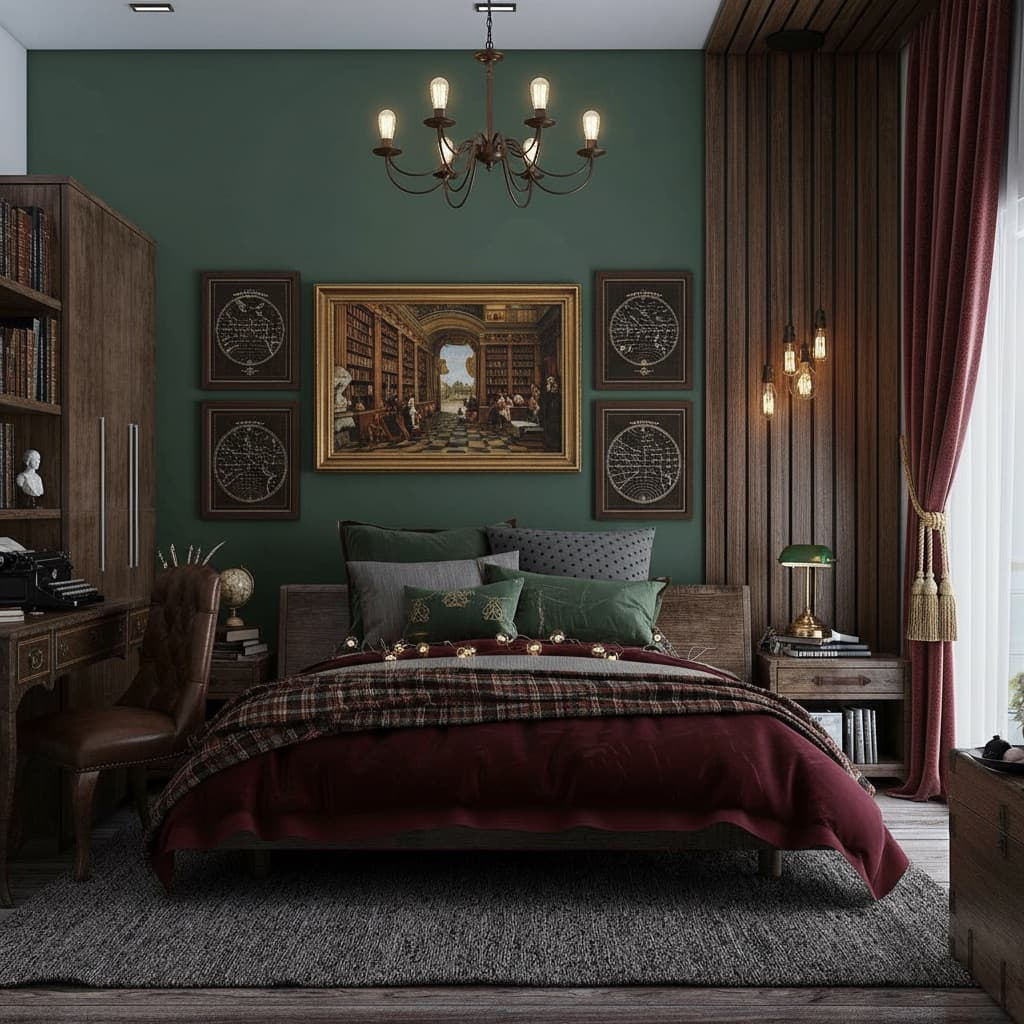
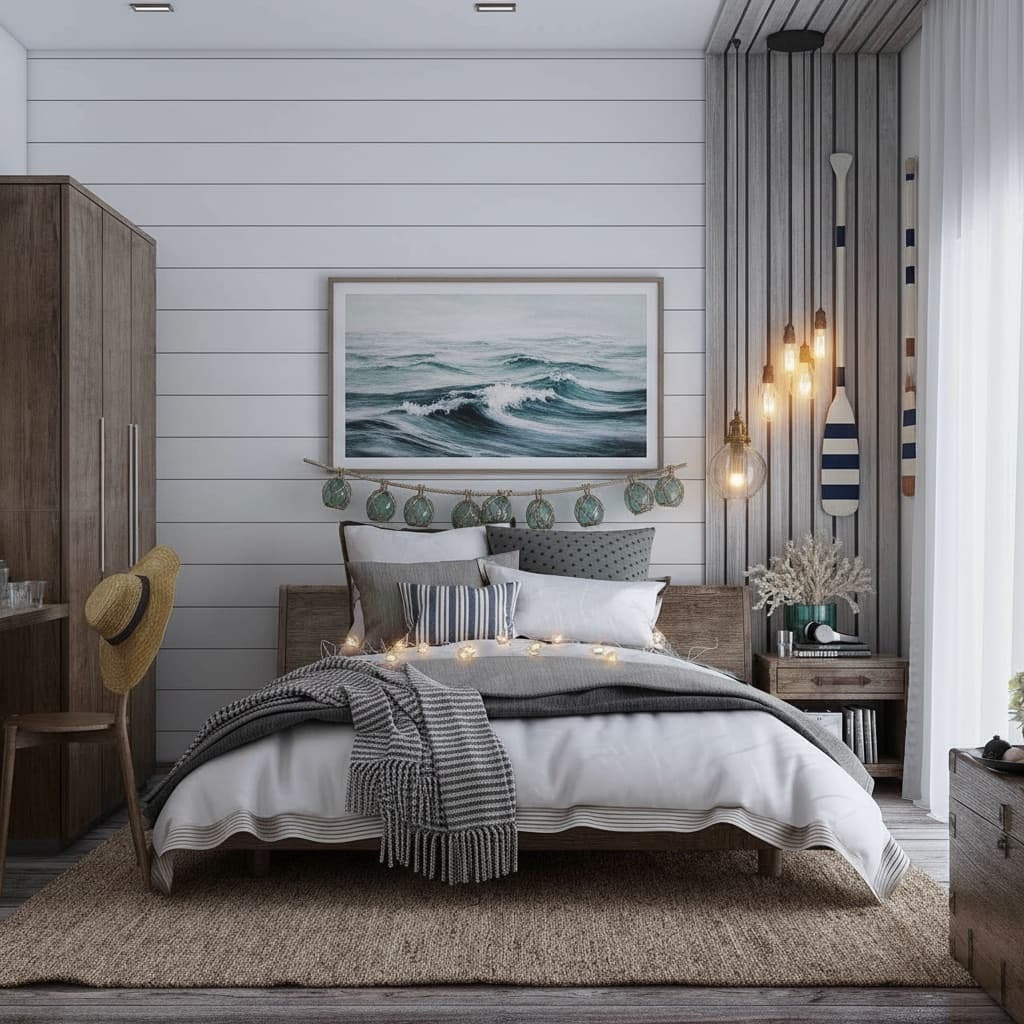
Shoot from the foot of the bed so the headboard and both nightstands are visible. The AI renders fabric textures - bedding, curtains - particularly accurately. Ceiling fixtures and wall sconces come out clearly if they're in frame.

🍳

Kitchen

Very strong on surfaces

Best for

Cabinet colours and finishes, countertop materials, backsplash tile, flooring, hardware

Camera tip

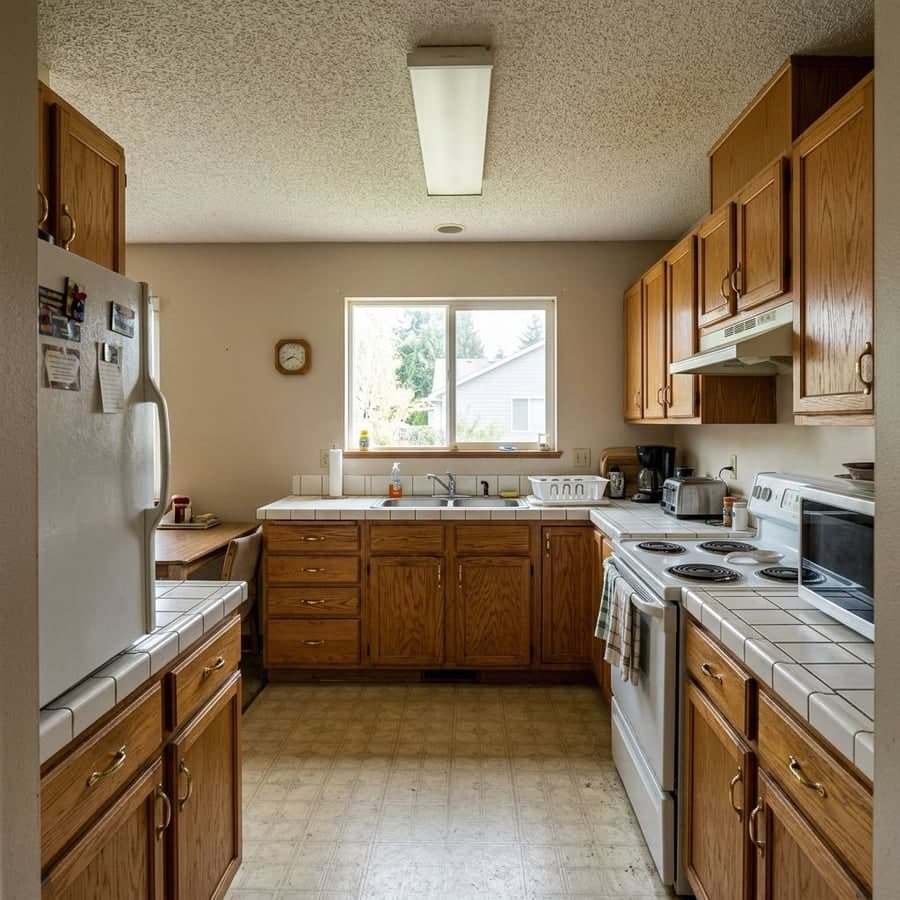
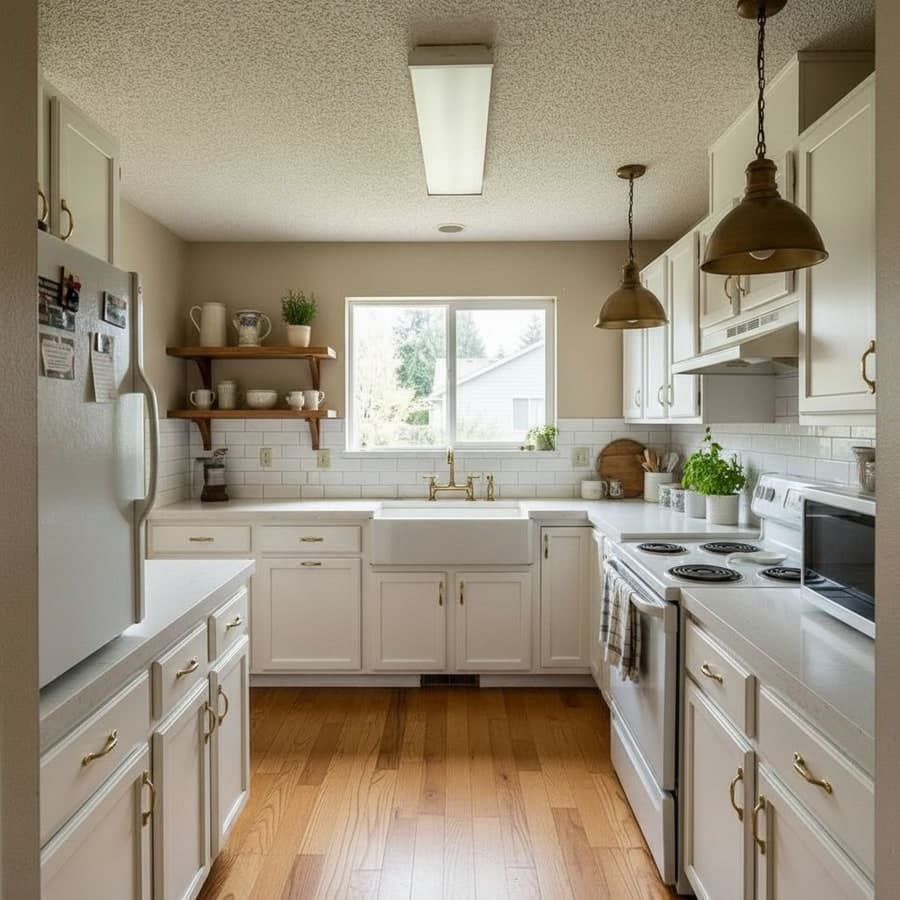
Try to capture both runs of cabinets and the main counter in one shot. Hardware details - handles, faucets - render clearly at normal standing distance. Cabinet colour changes are among the most accurate results the tool produces.

🚿

Bathroom

Strong on tile and fixtures

Best for

Wall and floor tile, vanity redesign, mirror area, fixture finishes, shower surround

Camera tip

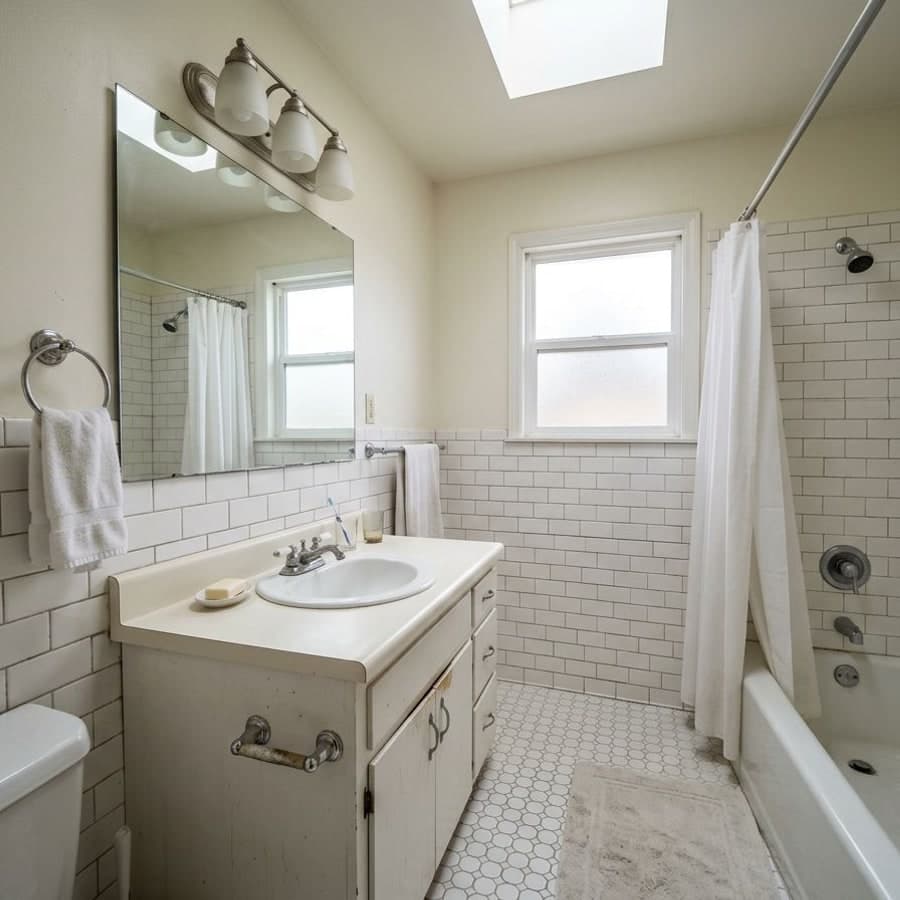
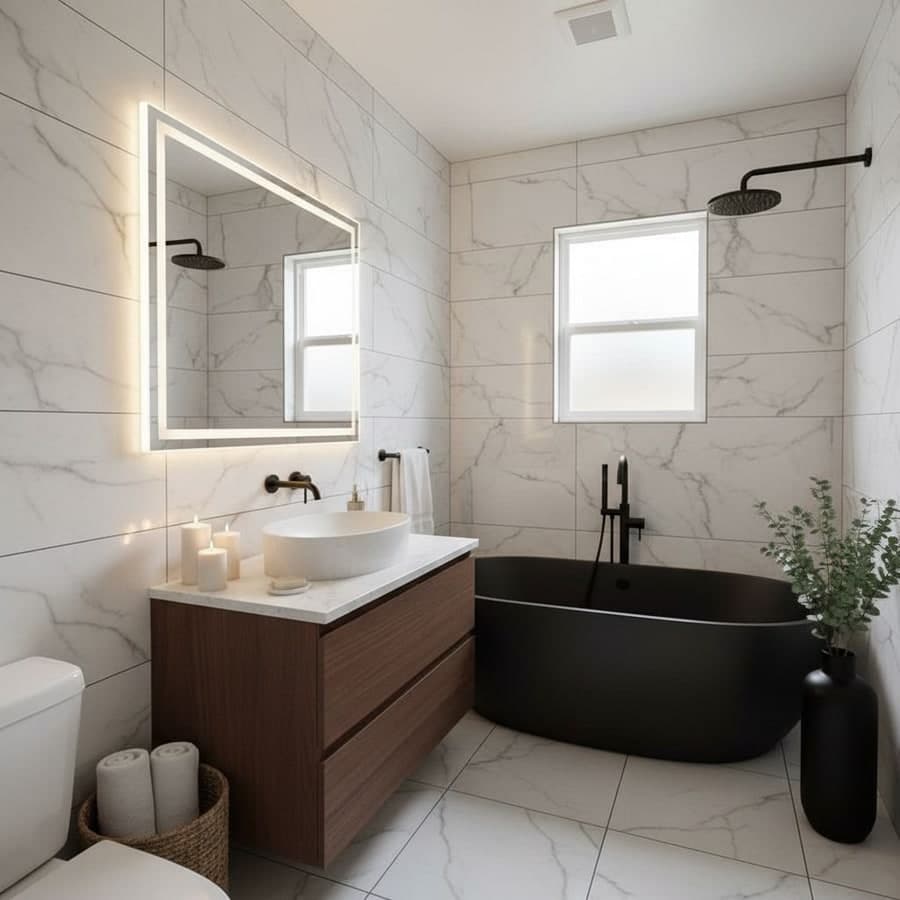
Small spaces are fine - the AI doesn't need a wide shot. Include the vanity and mirror area if possible. Fixture finish changes (brass, matte black, chrome) translate very clearly from the original photo.

πŸ’»

Home Office

Good for wall treatments

Best for

Desk wall design, built-in shelving concepts, wall panelling, paint colour, flooring

Camera tip

The AI can render the appearance of built-in bookcases or shelving that don't exist in the original photo - useful for planning a study corner or library wall before committing to construction.

πŸͺ‘

Dining Room

Strong on statement finishes

Best for

Statement wall treatments, overhead lighting, flooring, seating material changes

Camera tip

Capture the dining table, chairs, and overhead light fitting together in frame. Statement wall treatments - panelling, wallpaper, textured plaster - render with high accuracy in dining spaces.

Reimagine Any Room Free β†’

2 free rooms Β· No account needed Β· Results in ~30 seconds

30+ Curated Styles

Every style available to reimagine your home

Pick from presets or describe your own. Plain English works just as well as style names.

Browse All 30+ Styles β†’

Transparent Pricing

Free and paid options

Start free. No credit card, no time limit.

Start here

Free

$0forever
  • Room renders2 rooms
  • WatermarkNone
  • Design styles30+ styles
  • DownloadsFull resolution
  • Credit cardNot required
  • Editing toolsPaint Walls + 1
⭐ Best to explore

Day Pass

$3.99/ 24 hours
  • Room rendersUnlimited
  • WatermarkNone
  • Design stylesAll 30+
  • DownloadsFull resolution
  • Credit cardRequired
  • Editing toolsAll 6 tools
Power users

Pro Monthly

$14.99/ month
  • Room rendersUnlimited
  • WatermarkNone
  • Design stylesAll 30+
  • Downloads4K + PDF export
  • Credit cardRequired
  • Editing toolsAll 6 tools

Start with 2 free rooms - no credit card, no timer.

Try Free - No Card Needed β†’

FAQ

Frequently asked questions

From how realistic the results are to whether Decoratly is the same as Reimaginehome.ai.

What is reimagine home AI?β–Ύ
Reimagine home AI is software that generates a photorealistic image of your actual room with a new design applied - not a generic template or moodboard, but your specific walls, windows, and floor with a different style rendered onto them. You upload a room photo, the AI reads the geometry and lighting, and returns a redesigned version of your real space in about 30 seconds.
Is Reimaginehome.ai the same as Decoratly?β–Ύ
No - they're separate services. Reimaginehome.ai is a competitor product. Decoratly is an independent AI interior design tool built by a different team. If you searched for Reimaginehome.ai and landed here, Decoratly offers photorealistic AI room redesigns in about 30 seconds, with 30+ styles and 2 free rooms to try, no credit card required.
How do I reimagine my home with AI?β–Ύ
Upload a room photo (phone camera works fine), pick one of 30+ styles or describe what you want in plain English - 'warm Japandi', 'industrial loft', 'quiet luxury' - and the AI renders a redesigned version of your actual room in about 30 seconds. Download the result immediately, watermark-free.
Is it free to reimagine my room with AI?β–Ύ
Yes. Decoratly's free plan includes 2 full room renders - watermark-free, full resolution, no credit card required. If you want unlimited rooms or all 30+ styles, day passes start at $3.99.
How long does it take to reimagine a room?β–Ύ
About 30 seconds from upload to finished render. The AI processes the photo, identifies the room's geometry and lighting, applies the selected design style, and returns a photorealistic result. Upload takes a few seconds depending on your connection; the render itself takes around 30.
What rooms can I redesign with AI?β–Ύ
Any room: living rooms, bedrooms, kitchens, bathrooms, home offices, dining rooms, studios, hallways, sunrooms, and more. The AI reads your room's specific geometry and lighting from the photo, so results are always specific to your actual space - not a generic template.
How many design styles are available to reimagine my home?β–Ύ
30+ curated styles, covering Japandi, Scandinavian, Modern Minimalist, Dark Academia, Coastal, Farmhouse, Industrial, Bohemian, Quiet Luxury, Cottagecore, Art Deco, Mid-Century Modern, and many more. You can also type a custom description and the AI interprets it.
Do I need design experience to use home AI?β–Ύ
No. Plain English descriptions work well - 'cozy and warm', 'bright and modern', 'dark and moody'. You can also pick from presets if you're not sure what to describe. The AI is designed to interpret vague inputs like 'something more calming' and produce useful results.
How realistic are AI home redesigns?β–Ύ
Very realistic, because the AI works with your actual room photo rather than replacing it with a generic interior. It preserves your room's true proportions, window positions, floor plan, and lighting conditions, then applies the new design onto that structure. The result looks like a photo of your room after renovation, not AI-generated concept art.
Can I download my reimagined room?β–Ύ
Yes. All renders download as full-resolution, watermark-free JPEG files on every plan, including the free tier. The image is yours to share with a partner, hand to a contractor, or use as a reference before making any purchases.
Can AI reimagine my whole home at once?β–Ύ
Room by room, yes. The AI processes one photo at a time, so to reimagine multiple rooms you upload each separately. You can run through your whole home in one session - living room, bedroom, kitchen, bathroom - and compare the redesigns side by side before committing to anything.
What else can Decoratly do beyond full room redesigns?β–Ύ
Beyond applying complete styles, Decoratly has 6 individual visual editing tools: Paint Walls (100+ professional colors), Add Furniture from a reference photo, Remove unwanted objects from your room, Change the Color of specific items, Add Objects (lamps, plants, art), and Adjust Lighting conditions. Each tool works directly on your uploaded photo.

Ready to see your room redesigned?

2 free rooms Β· No credit card Β· Download in 30 seconds

Reimagine My Room β†’
Editorial

Reimagining your home with AI in 2026

By Kamil Uhryn Β· Updated June 2026 Β· 4 min read

A few years ago, "see what your room would look like before you renovate" meant hiring a designer or spending hours in a 3D tool. Now it takes 30 seconds and a phone photo. The technology has genuinely caught up to the promise.

What changed isn't just speed - it's accuracy. Early AI room tools generated fantasy interiors that looked nothing like your actual space. Current tools, including Decoratly, start from your photo and apply the redesign to your real geometry. The window is where your window is. The wall proportions are yours. You're seeing your room, not a stock photo.

The decision it replaces

The biggest use case is the purchase decision. You want to repaint a room but you're not sure about the color. You're looking at a sofa that would change the whole feel of the living room. You've found a style on Pinterest but can't tell if it works in your specific space. Each of these decisions used to require either imagination or commitment. Now they require a photo and 30 seconds.

"Seeing β€˜sage green with warm walnut’ rendered on your actual walls is completely different from reading it in a description."

- Decoratly team, 2026

Where it works best

Living rooms and bedrooms render most convincingly because they have clear focal points and visible surfaces. Kitchens work well when the cabinets and countertops are clearly visible. Bathrooms show good results for tile and fixture changes. The AI reads lighting conditions well, so rooms with complex natural light - lots of windows, strong shadows - often produce surprisingly realistic results.

How to get the most out of it

Take a wide-angle shot that captures as much of the room as possible - corners, ceiling edge, and floor. The more of the room the AI can see, the more specific the redesign. If the first render isn't quite right, try rephrasing your description: "warmer", "lighter walls", or "more minimal" all work as refinement prompts. The free tier gives you 2 rooms to experiment with before committing to anything.

2 free rooms, full resolution, watermark-free download. No account required to start.

Try It Free - See My Room β†’
Ready to see it?

Stop imagining your redesign.
Start seeing it.

Upload one photo. The AI renders your room in about 30 seconds - no descriptions, no guesswork.

Reimagine My Room Free β†’

✨ 2 free rooms · No credit card · Watermark-free downloads