
How to use AI to decorate a room, step by step.
What to photograph, what to let the AI change, how to compare styles and how to turn a good-looking picture into a plan you can actually follow. Try each step on your own room as you read.
Your first design is free in one of six free styles, with no signup and no card (available in the US, Canada, the UK and several European countries). All 75+ styles and the edit tools come with the $14.99, 30-day pass.
By Kamil Uhryn, founder of Decoratly · Updated October 2026
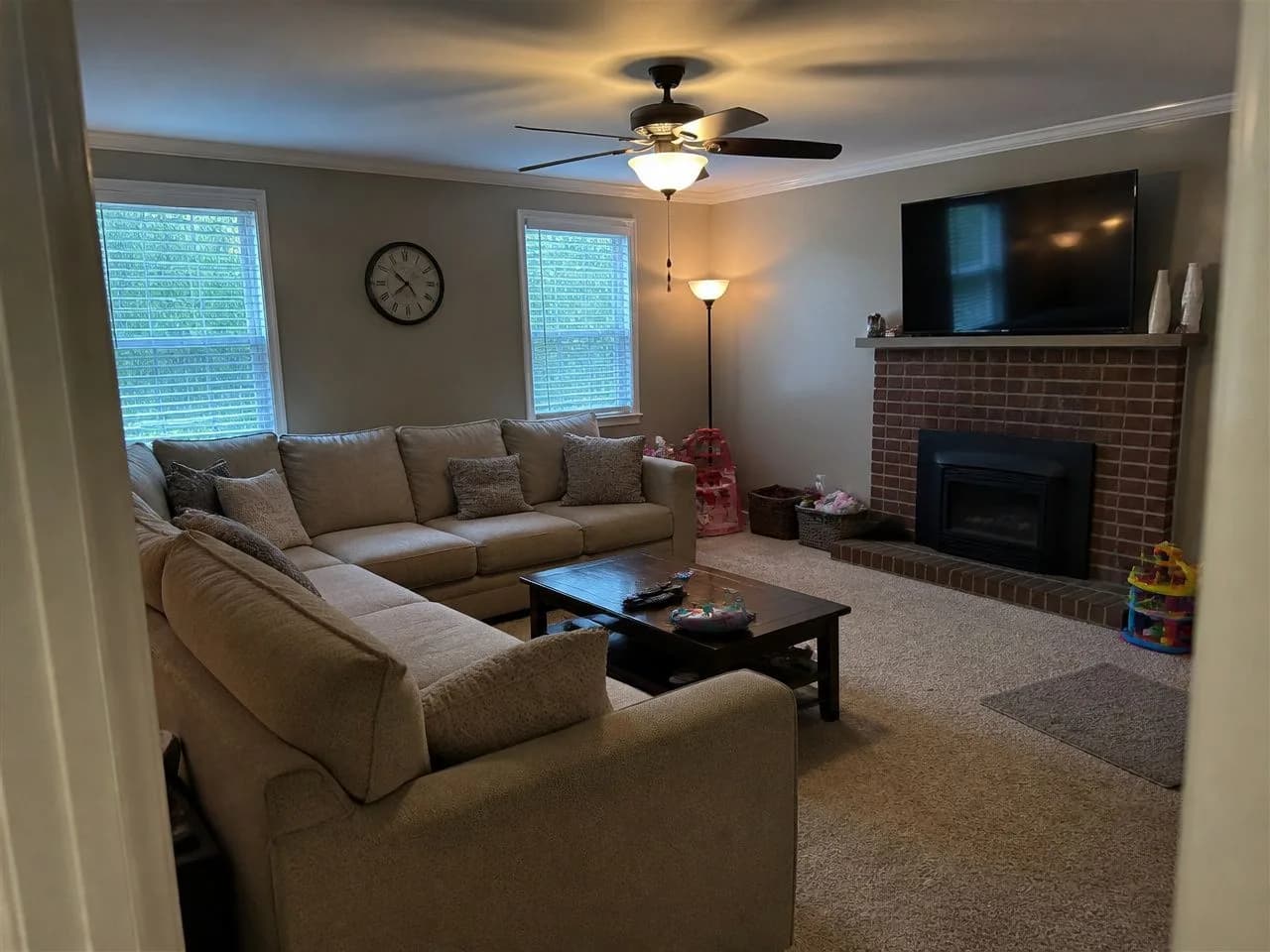 1 · Your photo
2 · Pick a style
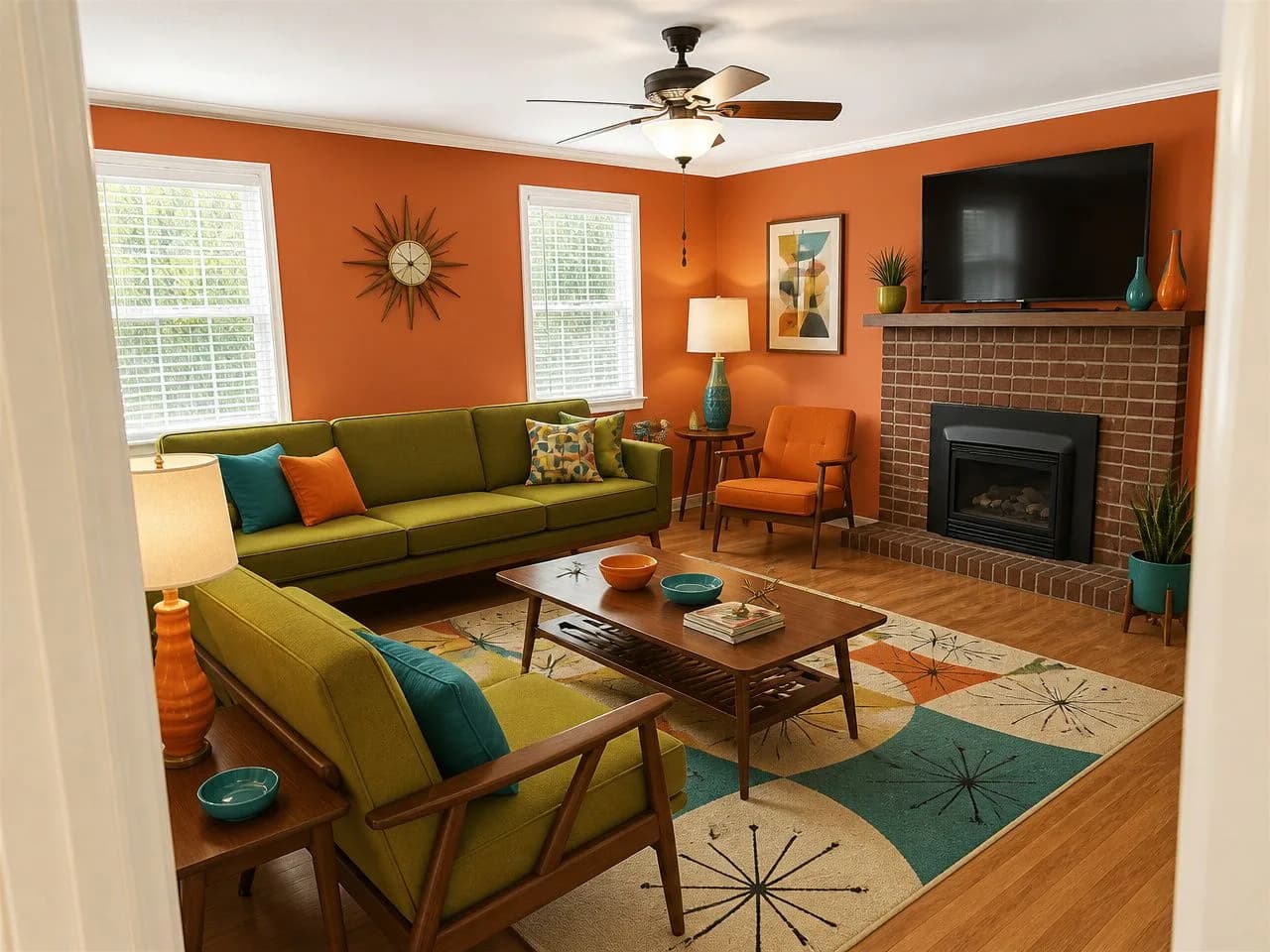
Warm MinimalistJapandiCoastalMid-Century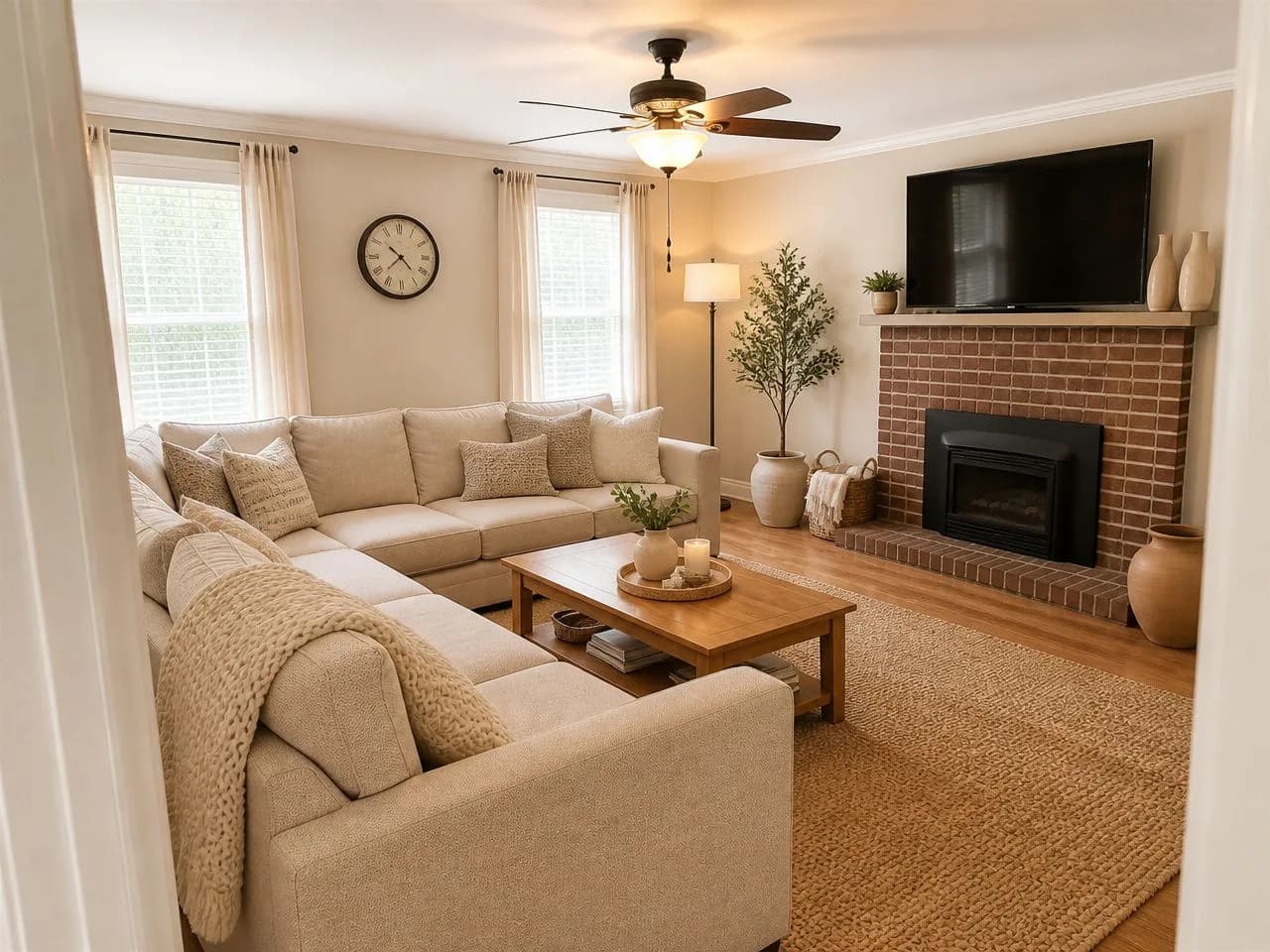 3 · Your room, redesigned
Can AI decorate my room? Yes, as a picture.
Give it a photo of your real room and it shows you the same room in a different style. That turns decorating guesses into pictures you can compare before you spend. It is a visualization, not a plan, so know what it does and doesn't do.
What AI can do
- Redesign a photo of your real room in a new style, in about 30 seconds
- Keep your walls, windows, light and proportions
- Show new furniture, colors, rugs, lighting and decor
- Let you compare several looks before you spend
What it can't
- Measure your room or draw a floor plan
- Tell you whether a sofa fits through your door
- Get every small detail right; you can run a design again
- Replace a contractor for anything structural
Take a photo the AI can work with.
The result can only be as good as the photo. A phone is enough; a few minutes here makes every later step better.
✓ A good photoShoot from a corner
Aim across the room so you get as much floor, wall and window as possible. A straight-on photo of one wall gives the AI little to work with.
Daylight, lights on
Even, bright light shows real colors and textures. A dark photo gives muddy results.
Tidy first
Clutter gets read as furniture. Clear the floor and the surfaces you want to stay clear.
Keep it level
Phone horizontal at chest height, door frames and corners upright.
Try two angles
If one view is awkward, another may work better. Keep the best.
Decide what should change, and what shouldn't.
The step most people skip, and why their first results feel off. Choose how far to go before you generate anything.
Option A
Restyle only
Keep the layout; change finishes, colors and decor. For a room with good bones that needs a fresher look.
Option B
New furniture
Let the sofa, table or bed change. For when the furniture itself is the problem.
Option C
New layout
Let it rearrange the room. Great for ideas; check every result against real measurements.
Option D
New walls or floor
Change only the surfaces. The cheapest experiment before you buy paint or flooring.
In Decoratly you choose these before generating, and the walls, windows and proportions are kept, so the result still looks like your room.
Compare three styles that really differ.
Don't start with your favorite. Try one warm, one light and one bold on the same photo; comparing across styles teaches you more than tweaking one ten times.
🎁 Free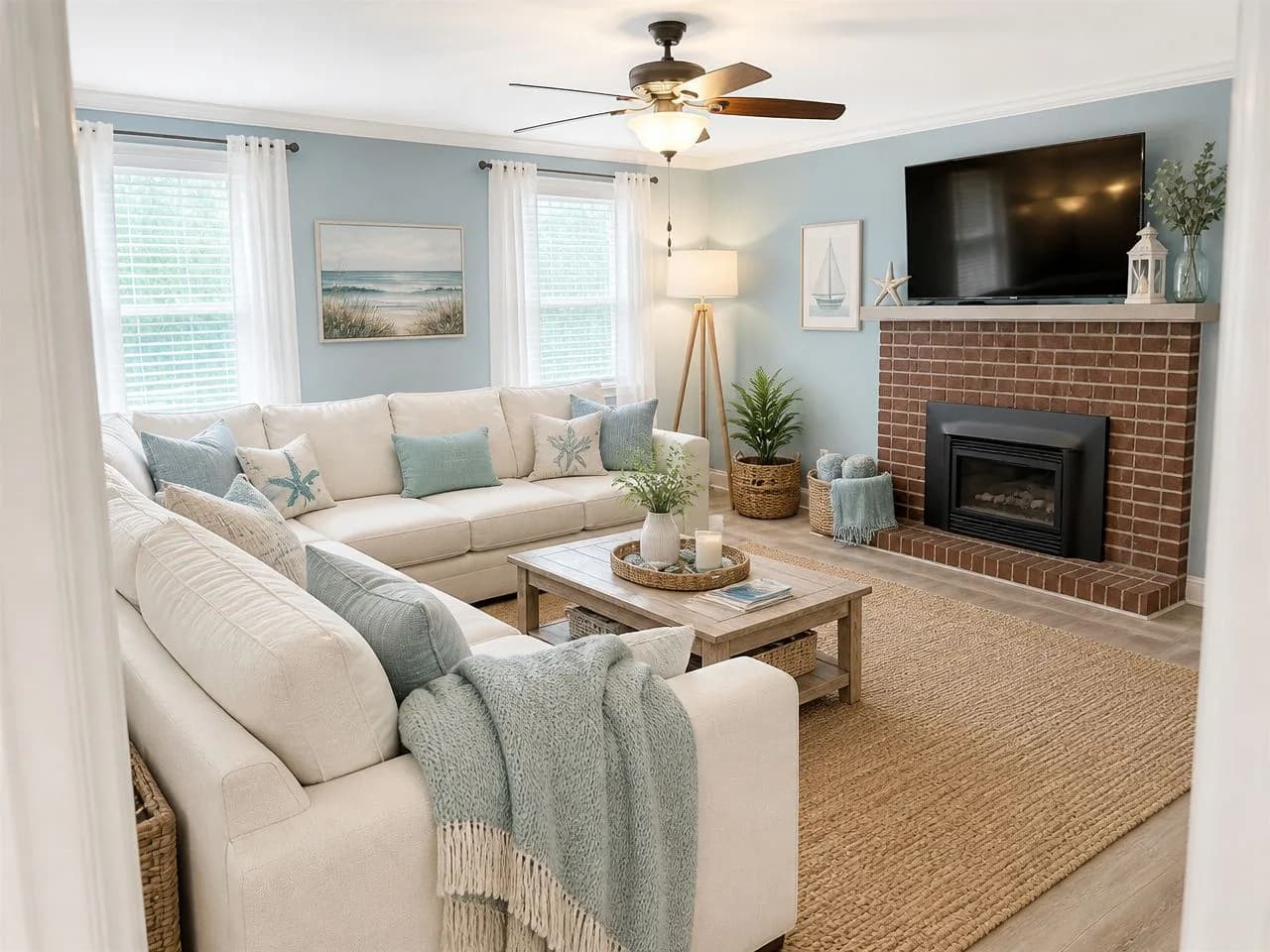 ✨ Pass
 ✨ Pass
Small or dark room
Family room that has to be forgiving
Clean and current
Don't know what you like? Take the 2-minute style quiz
Read the result like a designer would.
A good-looking picture isn't the same as a good idea for your room. Run these five checks before you fall for it.
- 1ScaleIs the sofa about right for the wall? Rugs, tables and lamps often come out bigger or smaller than they'd be.
- 2WalkwaysDesigners leave about 30–36 inches for main paths. If the picture blocks the route from the door to the sofa, it won't work.
- 3Small errorsAn extra chair leg, a window nudged sideways, a blurred detail. Zoom in, and run it again if something's off.
- 4LightThe picture shows one moment. Think about the palette at night and in the darkest corner.
- 5BudgetWhich of these changes would you really make? A room full of new furniture is inspiration, not a to-do list.
Change one thing at a time.
When a result is close, don't start over. Change one detail and see what it does. The edit tools come with the pass.
Adjust the lighting
See the room warmer, brighter or softer.
Want a second opinion in words? The AI designer chat looks at your room and suggests changes you can render straight away. AI interior designer
Turn the picture into a plan.
The point is to decide with confidence. Finish by turning the picture into actions.
Shop
Shop the Look finds similar pieces through Google Shopping and Amazon searches. Check size, material and returns on the seller's page.
Cheapest first
Paint, lighting and textiles change a room more than most people expect. Do those, then decide if the big purchases are still needed.
Step 1 takes two minutes. Start now.
Take the photo, upload it, and run steps 2 to 4 on your own room. The first design is free, with no signup and no card.
Common mistakes when decorating with AI.
- Choosing a style from a photo of someone else's room; light, ceiling height and windows change how a style looks.
- Generating dozens of variations without a question to answer. Decide what you want to learn, and stop when you know.
- Buying furniture from the picture without measuring.
- Cropping out what you can't change (floors, radiators, a low ceiling). Keep it in the photo so the result stays realistic.
- Expecting construction drawings. Use the picture to explain what you want, and get measurements from a pro.
Free to try, $14.99 once for more.
No subscription. Here's exactly what each gives you.
Designs
- Free
- 1
- Pass
- 200 over 30 days
Styles
- Free
- 6 free styles
- Pass
- All 75+, or describe your own
Download
- Free
- Up to 1280px, small watermark
- Pass
- Up to 2048px, no watermark
Edit tools and AI designer chat
- Free
- Not included
- Pass
- Included
Account or card
- Free
- Neither
- Pass
- One payment, nothing renews
Comparing tools? The best AI room design tools, compared
Questions, answered straight.
How do I use AI to decorate my room?
Take a bright photo of the room from a corner, decide what may change (style, furniture, layout, walls or floor), and generate the same room in two or three different styles. Check scale and walkways, refine one detail at a time, then measure before you buy anything.
Can AI really decorate my actual room?
Yes. You upload a photo of your room and the AI redesigns that same room, keeping your walls, windows, light and proportions while changing the style, furniture, colors and decor. It's a visualization to help you decide, not a technical plan.
Is it free to use AI to decorate a room?
Your first design is free, with no signup and no card, in one of six free styles; free results are web resolution with a small watermark. A $14.99 pass, paid once for 30 days, adds all 75+ styles, the edit tools and 200 designs.
How do I use AI for interior design?
Use it for the decisions that are hard to imagine: comparing styles, testing a wall color, trying a piece of furniture, or seeing a new layout. Start from a photo of your own room so the result reflects your light and proportions, and treat every image as an idea to check, not a plan to build.
What kind of photo works best?
A bright, level photo from a corner of the room, showing as much floor, wall and window as possible. Tidy first, and avoid close-ups or dark photos.
How long does it take?
A redesign takes about 30 seconds. Trying a few styles and refining one detail at a time usually takes 10 to 15 minutes in total.
Will the AI change my windows, walls or floors?
Your walls, windows, light and proportions are kept. You decide whether furniture, layout, wall color or flooring may change.
Can ChatGPT decorate my room?
ChatGPT is good for ideas, palettes and shopping lists, and it can generate images, but it doesn't start from your actual room's layout the way a photo-based tool does. Many people use both: ideas in ChatGPT, then the look on their own photo.
Which AI is best for decorating a room?
One that starts from your own photo, keeps your layout, produces realistic results and tells you its free limit up front. Our comparison covers the main tools with prices and free tiers, read from each company's site.
Can I use the result to buy furniture?
Use it as a guide to the look you want, then measure your room and every piece before you buy. Shop the Look links go to Google Shopping and Amazon searches, so check size and returns on the seller's page.
Your room, three styles, ten minutes.
One photo, one free design, no account. If you like it, keep it.
Who wrote this
Kamil Uhryn builds and runs Decoratly, an AI interior design app live since November 2023, with 25,000+ rooms redesigned. Every room picture on this page was made by the app from an ordinary photo, with the same model and style prompts you get.
What the app can't do
- It shows how a room could look. It is not a floor plan or a measured drawing, so measure before you buy.
- It works from one photo. Anything the photo doesn't show is inferred, not known.
- AI images can get small details wrong. Results are checked automatically and you can run a design again.
Last updated October 2026.